
Connect Nutriely to your AI assistant
Your assistant can then answer from your food diary, your targets and our catalog instead of general knowledge. It takes a couple of minutes and works with a free Nutriely account with a verified email. Subscribers can also ask about their full history and trends.
Which AI do you use?
Choose the one you use, then follow its steps.
Nutriely's address
https://nutriely.com/mcp/nutriely
You'll paste this in one of the steps below.
Add the connector in Claude
-
1
Open Claude's connectors page
Go to claude.ai/customize/connectors and sign in if you haven't already. You can also get there from the Claude menu: Customize, then Connectors.
-
2
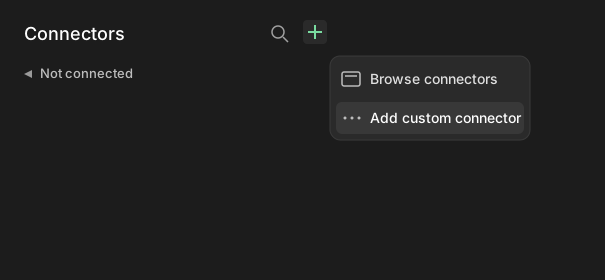
Click the + icon, then Add custom connector
-
3
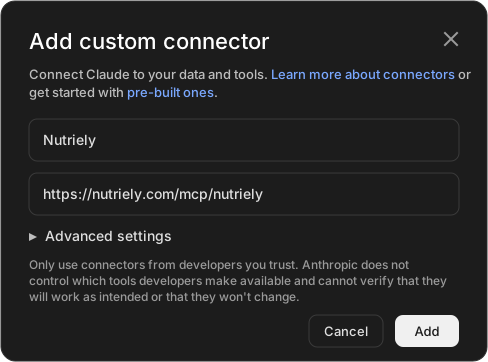
Fill in the details
Name: Nutriely.
Remote MCP server URL: the address above.
Leave Advanced settings empty, then click Add.
-
4
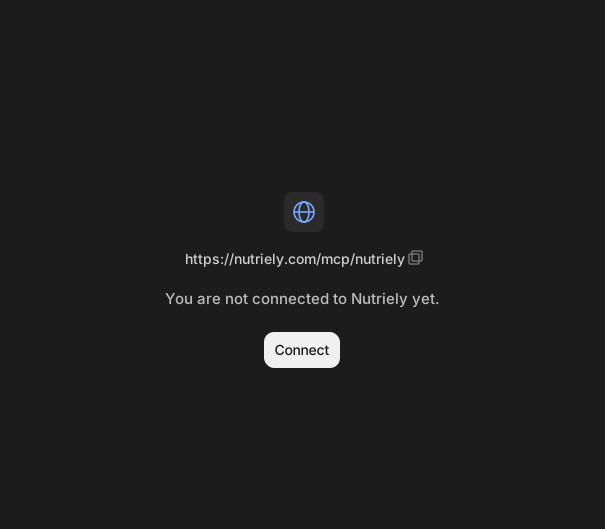
Click Connect
You'll land on a page that says you aren't connected to Nutriely yet. Click Connect.
-
5
Approve access in Nutriely
You'll be sent to Nutriely. Sign in with the account you use in the app, read what will be shared, then click Authorize.
Authorization Request
Claude wants to connect to your Nutriely account. It will be able to read your food diary, goals, nutrient data and insights, add foods to your diary and remove them, create and edit your own foods and recipes, and update a diary day's totals. This information will be sent to Claude and its AI provider. It won't be able to change anything else. You can disconnect at any time from your account page.
Authorize Cancel -
6
You're done
You'll be sent back to Claude, and Nutriely appears in your list of connectors. Start a new chat and try one of the questions below.
You need a paid plan with Developer mode. ChatGPT only shows the option to add a custom server once Developer mode is on, and it turns off Memory while it's on.
Part 1 of 2
Turn on Developer mode
-
1
Open ChatGPT's settings
Go to chatgpt.com, sign in and open Settings. On a workspace plan, an admin may need to allow Developer mode first.
-
2
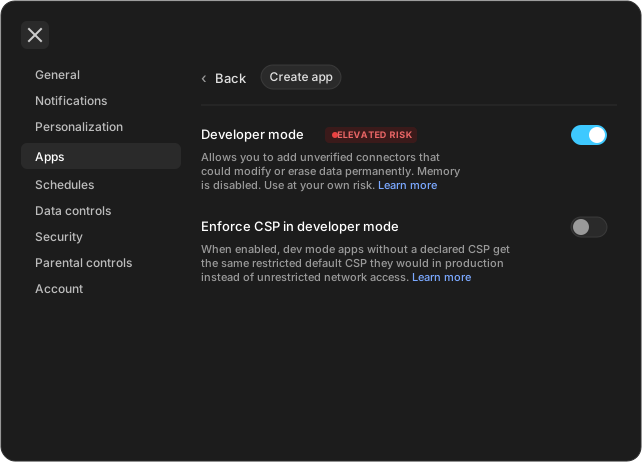
Switch on Developer mode
You'll find it under Advanced settings. It's marked Elevated risk because OpenAI doesn't review these servers.
Part 2 of 2
Add Nutriely
-
1
Open Plugins
Go to chatgpt.com/plugins and sign in. Click the + button, then Add custom MCP server.
-
2
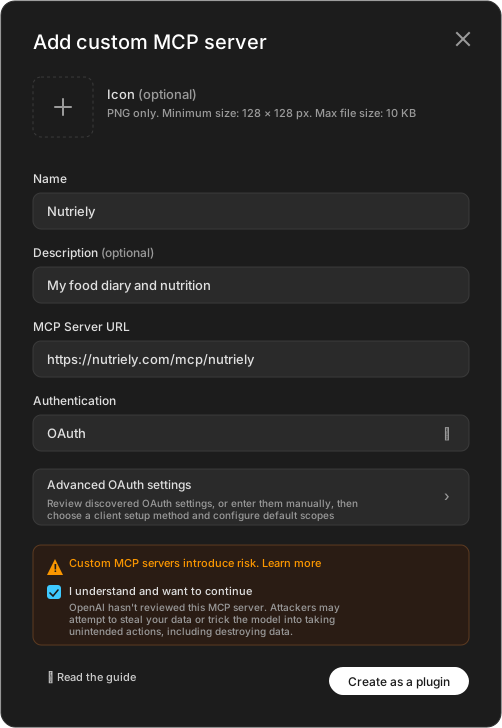
Fill in the details
Name: Nutriely.
Description: anything you'll recognise, such as "My food diary and nutrition".
MCP Server URL: the address above.
Authentication: OAuth.
-
3
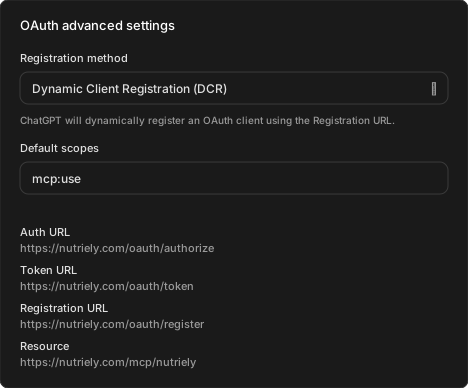
Check Advanced OAuth settings
ChatGPT finds these by itself, so you don't need to change anything. Registration method should say Dynamic Client Registration (DCR), with mcp:use as the scope.
-
4
Accept the notice and create it
Read the risk notice, which appears because OpenAI hasn't reviewed custom servers. Tick I understand and want to continue, then click Create as a plugin.
-
5
Approve access in Nutriely
ChatGPT sends you to Nutriely. Sign in with the account you use in the app, read what will be shared, then click Authorize.
Authorization Request
ChatGPT wants to connect to your Nutriely account. It will be able to read your food diary, goals, nutrient data and insights, add foods to your diary and remove them, create and edit your own foods and recipes, and update a diary day's totals. This information will be sent to ChatGPT and its AI provider. It won't be able to change anything else. You can disconnect at any time from your account page.
Authorize Cancel -
6
Switch it on in your chat
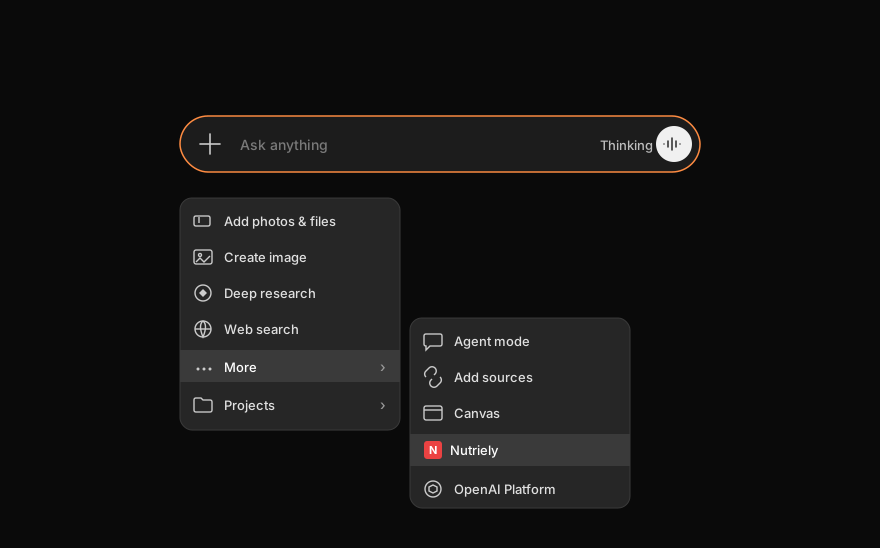
Open a new chat, click the + in the message box, and pick Nutriely. You may find it under More.
What to ask first
- Which vegetables gave me the most vitamin A this month?
- Which nutrients have I been low on this month?
- Where does my fibre come from?
- What would this recipe add to my day?
- Add what I had for lunch, and tell me what it adds up to.
Values are estimates based on what you logged, and they aren't medical advice.
What gets shared
- Nothing is shared unless you connect an assistant and approve it on our consent screen.
- Once connected, the assistant can read your food diary, notes, goals, nutrient data and insights, along with your nutrition standard, diet and unit preferences. When you ask, it can add foods to your diary or remove them, create and edit your own foods and recipes, and update a diary day's totals. It can't change anything else.
- Your name and email address aren't shared through this connection.
- This data goes to the assistant you connected and its AI provider, under their terms and privacy policy. Please read them first, and only connect if you're comfortable with that.
You can read the details in our privacy policy.
How to disconnect
Sign in on the Nutriely website and open your account page. Under Connected assistants, click Disconnect.
Connected assistants
We then stop sharing data with that assistant, but we can't delete what it has already received. For that, contact its provider. You can also remove Nutriely from the assistant's own settings.
If something goes wrong
- It says something is available only to subscribers
- Free accounts cover today and yesterday. Check that you signed in with the account that has your subscription. If you've just subscribed, it can take up to an hour to show up.
- It answers from general knowledge instead of your diary
- Check that Nutriely is switched on for that chat, then ask again and mention Nutriely by name.
- It can't find anything for today
- The date can be a day off, depending on your time zone. Try giving the date.
Start learning with Nutriely.
Free to download and free to use. Try Premium free for 7 days when you want the full picture.